
Mold Library
Creating and managing mold geometries for catalog-based optimization.
Mold Library
The Mold Library stores cross-section geometries that constrain the optimizer. Access it from the Mold Library button on the Projects Dashboard.
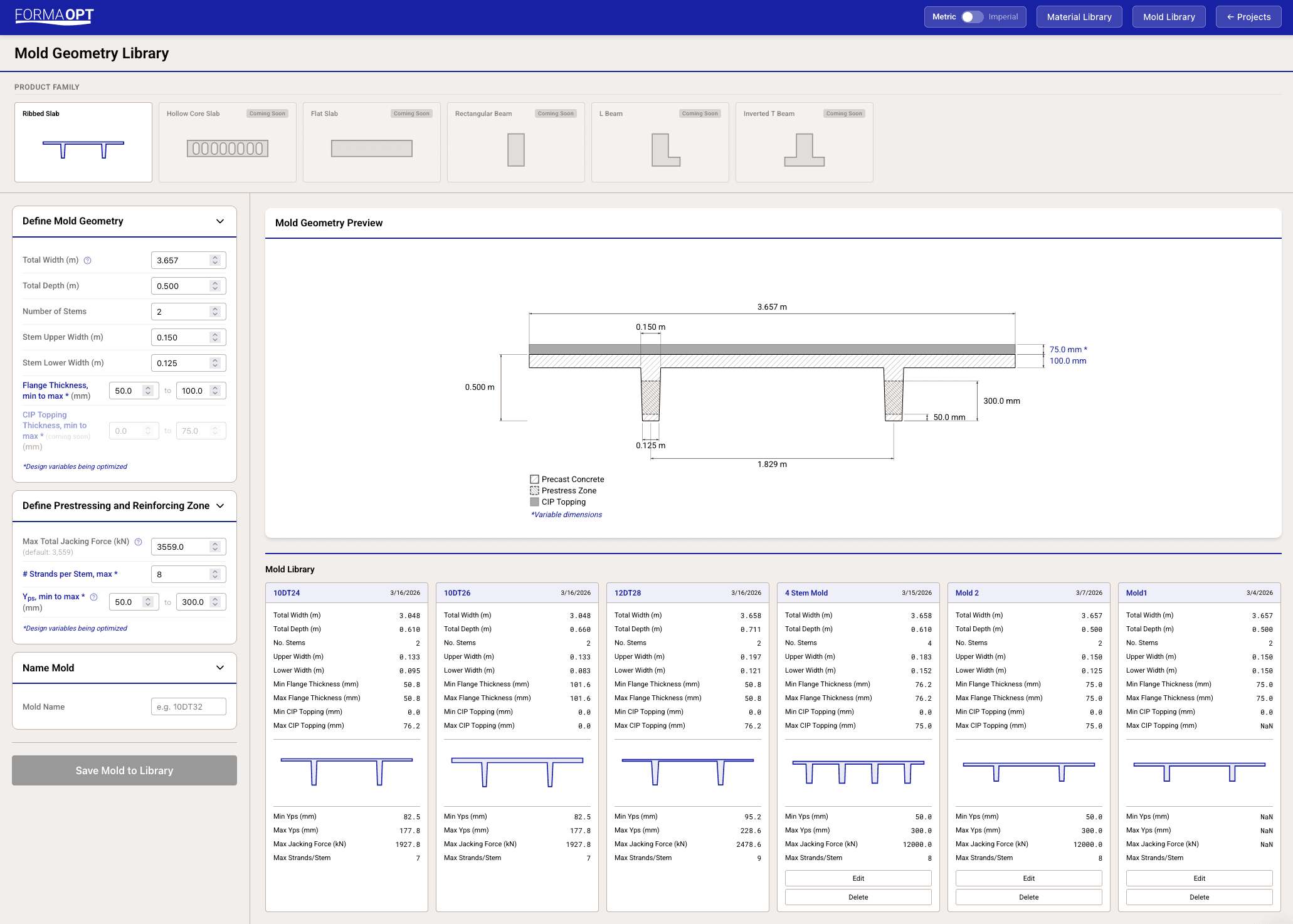
Mold Geometry Parameters
Each mold defines:
- Total width (mm) — overall flange width
- Total depth (mm) — overall section depth
- Flange thickness — min and max (mm)
- Number of stems — 1 to 8 (single-T, double-tee, multi-rib)
- Upper stem width (mm)
- Lower stem width (mm)
Live Preview
As you enter geometry values, a 2D cross-section drawing updates in real time showing the actual proportions of your mold. This helps you verify the geometry before saving.
Product Families
Molds are organized by product family:
- Single-T — 1 stem
- Double Tee — 2 stems
- Multi-Rib — 3+ stems
Select a product family to filter the display or start from a template.
Preset Molds
Standard PCI catalog molds are pre-loaded. Like preset materials, they:
- Cannot be deleted
- Can be cloned as custom molds
- Serve as a reference for standard industry sections
Using Molds in Optimization
- On the optimization screen, open the Mold Geometry Library section
- Click Select Molds
- Check one or more molds — each selected mold gets its own optimization run
- The right column shows a preview of selected molds with key dimensions
- Click Generate Designs — the optimizer runs within each mold's constraints
Multi-Mold Comparison
When you select multiple molds, Cimbra runs the optimizer separately for each one and presents results side by side. This lets you compare how different mold geometries perform for the same span and loading conditions.